


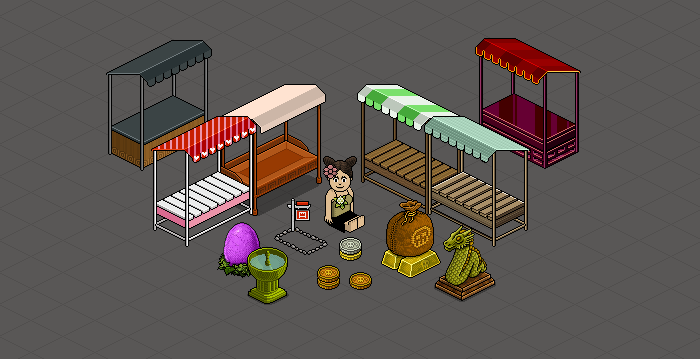
Market stalls are a recent addition to Habbo Hotel Origins, allowing users to passively buy and sell items without the need for much interaction. While you might think this would lessen player interest in trading, we've actually seen a trade boom due to how streamlined market stalls have made everything.
To purchase goods from market stalls and to buy the stalls themselves from the catalogue you'll need Habloon currency, here's a handy guide to buying & using Habloons if you're not already familiar.
Buying Wares: Where to Browse
Market stalls are currently placeable in our own private rooms and only one public room at the moment - The Infobus Park. You'll find most private shops under the trading rooms section of 'guest rooms' on the navigator. I highly recommend double checking the prices you'll find in private rooms. You can compare prices using our own Frankly values and know you're looking at accurate information.
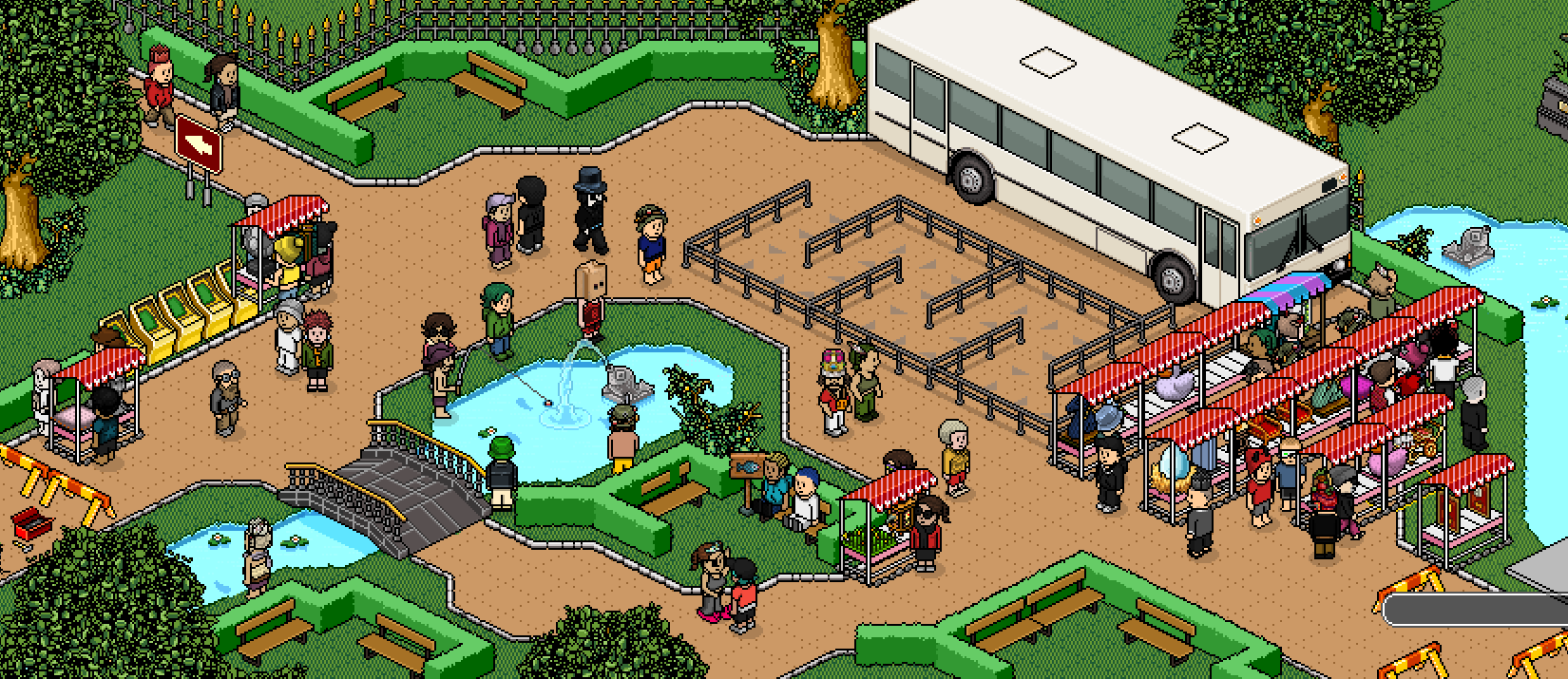 |
At random times of the day the Infobus Park will fill up with traders and stalls, often spontaneously organised by players and not easily predictable unless you're keeping an eye on the room or the many discord channels devoted to the trading market in Habbo Hotel Origins. Thankfully we are now also seeing Infobus Park Market Events appearing on the in-game bulletin calendar, making things easier already.
How to Buy Wares
Browsing and purchasing from stalls is very easy. You'll see a preview of the items listed for sale via their cute mini sprites, but only up to 4 will be shown depending on the room size (max 2 in big rooms), so make sure to double-click stalls to expand their view just in case you miss something you might love! Once clicked the market stall window will open and display all the furni the seller has available to buy on the left, with specific pricing for each item on the right. (Shoutout to L:am for letting me use his shop for images! <3)
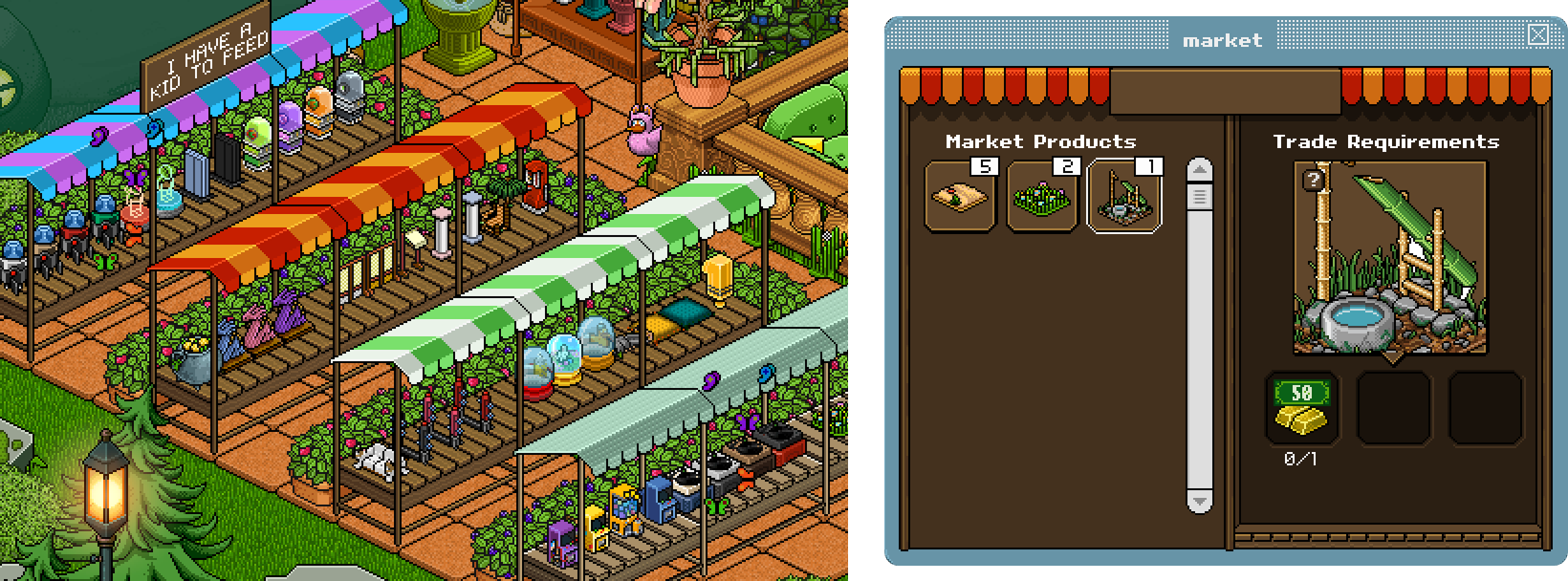 |
All you'll need to do is click the item that you'd like to buy, open your hand (inventory) and drag the correct Habloon coin amounts or Furni into the market window. Click 'trade' once it pops up, then confirm your trade details before clicking 'OK'. You should then see the purchased item in your hand, and the seller will have received the coins or furni they requested in exchange!
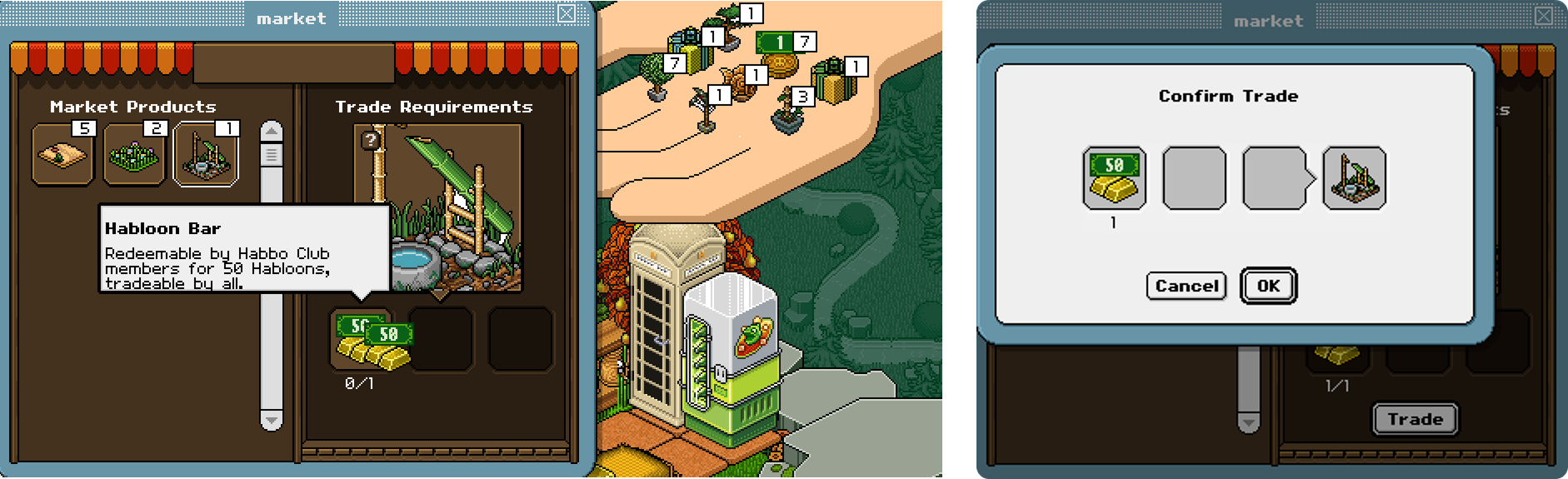 |
The small number attached to the boxes on the left is the amount the seller has in stock, not the amount you'll receive. You will always only receive one item per purchase. This has managed to trick quite a few players already, so make sure you're aware before going out into the wild world of stall trading!
Examples of a scam trade. You would only receive 1c in return for your GB on the left, and you would only receive 1GB for your Throne on the right.
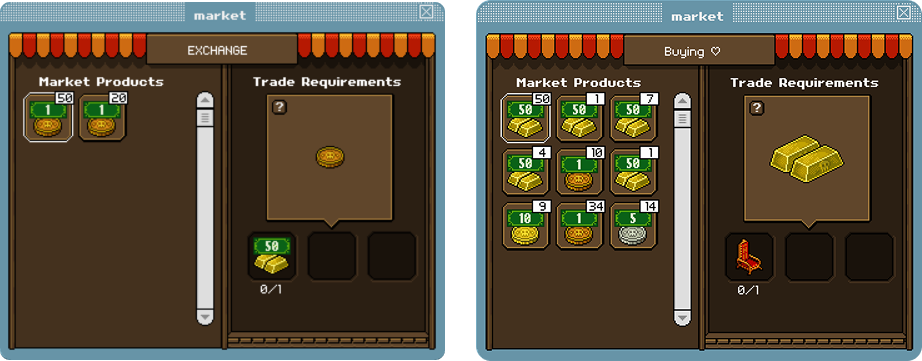
If you don't have the matching Habloon coins that the seller is asking for, you can always ask them to change their offer. For example they might have listed something for a 10c golden coin, but you have ten bronze coins or two silver coins in your hand. Most sellers won't have an issue with changing their listings for you!
Sellers will often ask for furni instead of coins, and might ask for multiples of a lower value item in exchange for a higher value one of theirs. I cover that a little more in the section below :)
Selling: How to Sell Wares
On the other side of things you might be interested in setting up your own shop and selling! How courageous to be a small business owner in today's economy.
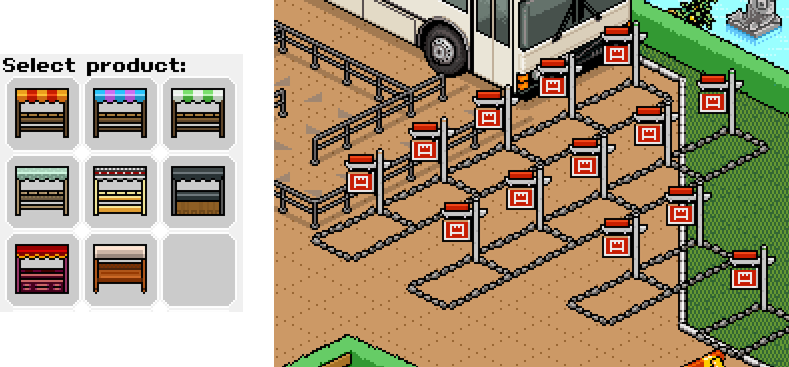 |
You'll first need a market stall, and you can find them in the catalogue for 10-15 Habloon balance. There are several stall designs already available made to match the popular catalogue furni lines. Place a stall in any of your own private rooms to add furni to it, and be aware that picking it up again will reset your listings and you'll need to relist them. To sell in the Infobus Park you'll need to rent a space for 2 Habloons per 30 minutes and can be done by double-clicking an empty space and placing your stall into it. Your stall will be automatically removed after 30 minutes and you'll have to buy another space, re-place your stall re-list all your items again. It's a little frustrating, but definitely worth getting involved in the Infobus trading events if you can catch one.
Selling: Adding Listings
Double-click your stall to open the market window, under 'Your Offer' on the right side you can drag the item you're selling from your hand into the top box. Keep clicking to add more stock, but know we can't currently remove individual stock so you'll have to cancel or delete the listing to take stock back out.
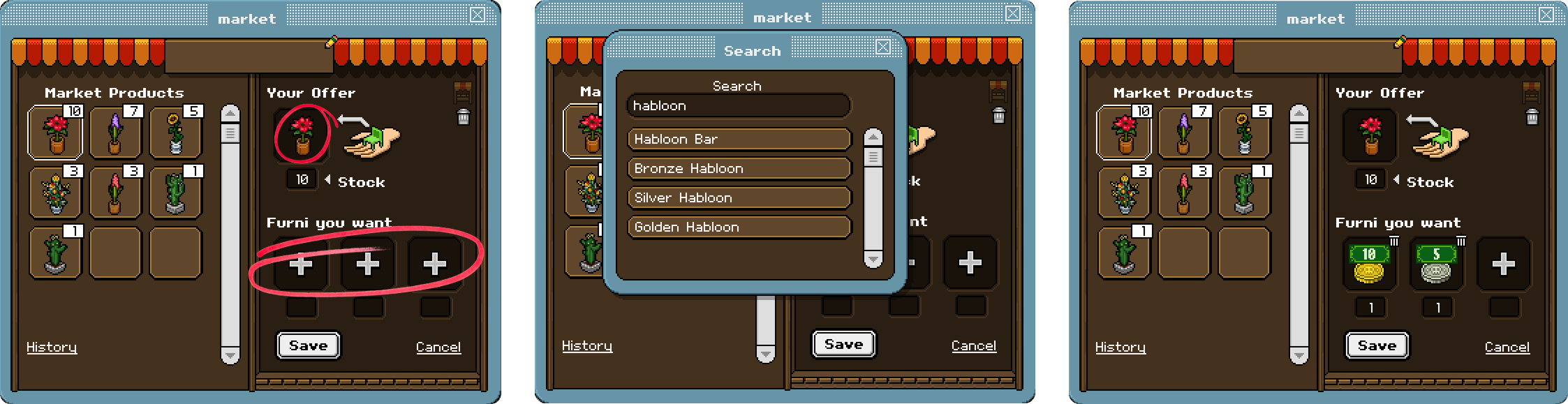 |
'Furni You Want' is where we'll add our asking price per item. You'll only be able to add one furni into each of the 3 boxes by clicking the pluses (+), so if for example you'd like to receive 15 Habloon coins, you'll search for 'Habloon' and choose a golden Habloon (10c), then a silver Habloon (5c) as shown above. Make sure to hit 'create' or save before moving onto the next listing.
On the left side is where your finished listings are displayed, you'll have 3 offer slots by default and you can unlock up to 6 more per stall using Habloons.
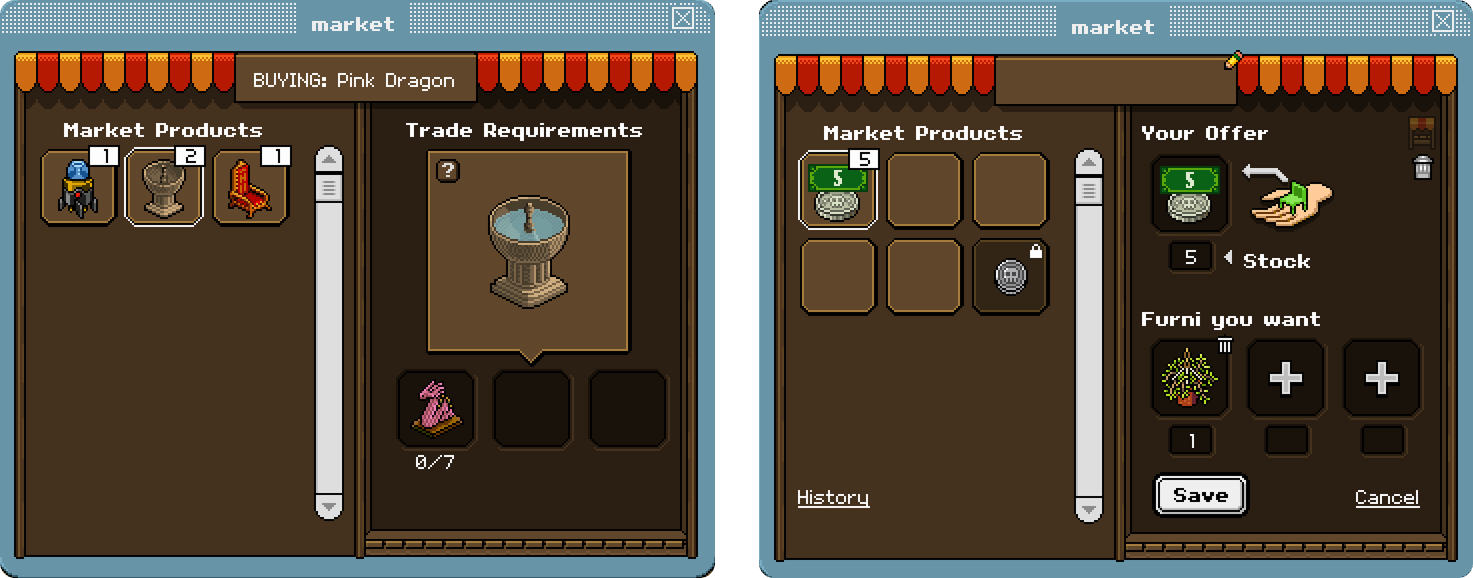
You can ask for any furni in exchange for items, not just coins, and traders will regularly offer higher value rares or norms in return for multiples of lower value furni in their stalls. For example pictured below, the left trade asks for 7 Clea's Dragon Lamps (rare) in exchange for Noco's Sand Bird Bath (super rare). My stall on the right asks for a Hanging Plant in return for a silver coin.
 |
Market Stall Features
- Stall titles - click inside the textbox at the top of the market window to type in your stall name, then hit enter to save it. A cute stall sign will appear on top of your stall with your chosen title. You can backspace the text and hit enter again to remove your title.
- Stall sprites - toggling this little market sprite on and off will display the item as a preview sprite visible on your stall (otherwise it randomises).
- History - clicking this will open the market history window where you'll be able to view all your recent sales and purchases. You'll be able to view each exchange you've had within the past month as shown below. Users with private profiles will appear as asterisks under the 'with' column.
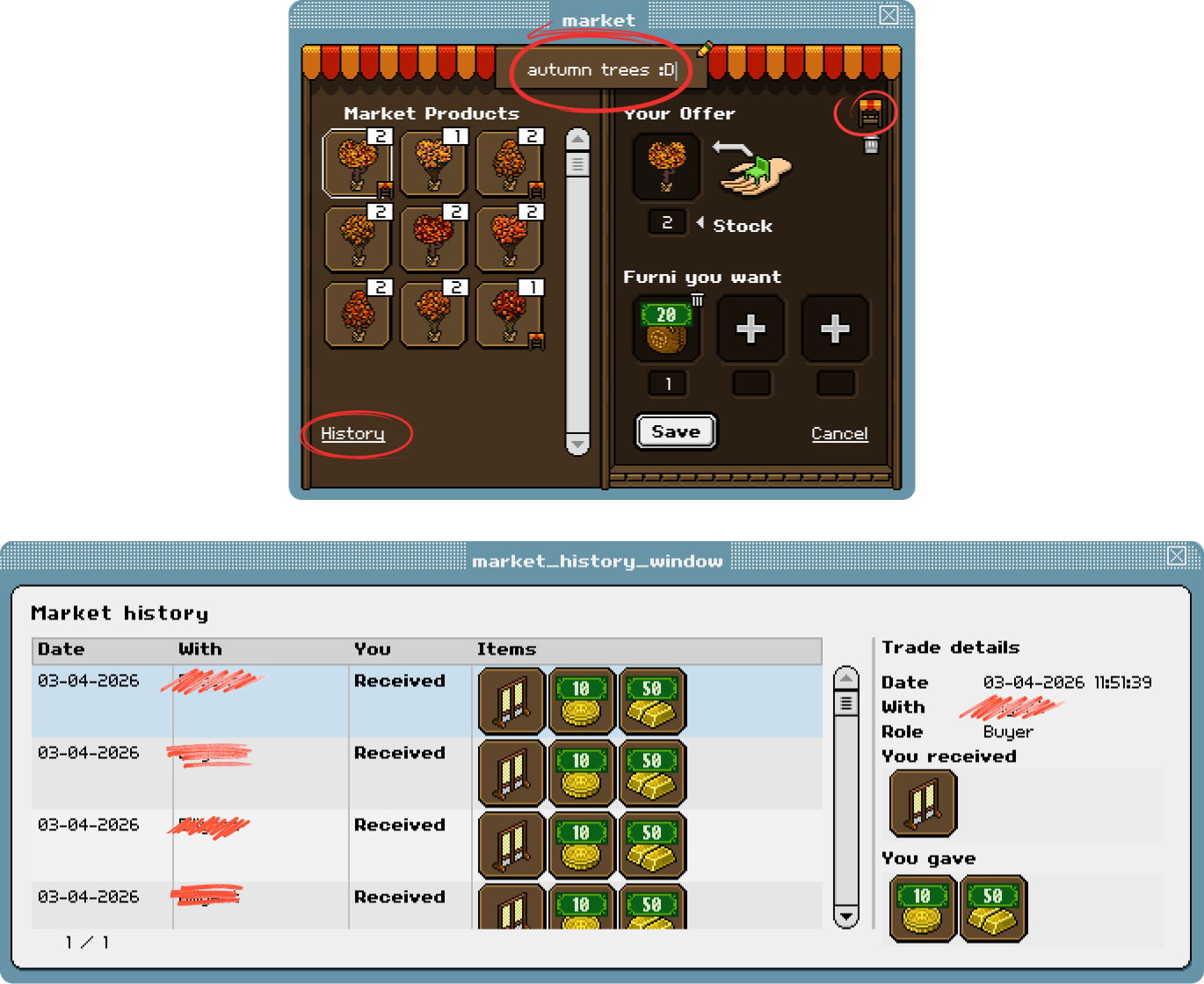 |
A bug currently exists in the market history window where it doesn't show us the colour of the item sold - for example you can see above that the screens I purchased are 'blank' in colour (but were in fact gold!). As a seller you will have to keep in mind the prices you've set if you're selling multiple colours to avoid confusion until this is fixed!