


Habbo Origins has taken a HUGE step forward for builders (& non-builders) with the arrival of Creative Mode and the new Advanced Placement tools. If you’ve spent years wrestling with stackmode, rollers and limits just to get a room looking how you want, this update changes the game completely.
Creative Mode gives players the ability to build freely without worrying about having to purchase credits and scouring the market for some of the staple furniture they need. Instead of spending weeks gathering items for a project, you can jump straight into designing and experimenting. It’s essentially a sandbox for testing ideas, learning building techniques and creating rooms you wouldn't have created before, due to lack of credits. Only some staple lines are availilable for now, but we may see this change in the future.
Alongside that comes Advanced Placement and Bulk Move, new movement tools that let builders move furni with far more ease than before! Built a nice little living corner but think it would look better positioned elsewhere in the room? No worries! They've got that covered as well.
For newer players, it makes building far more approachable. For experienced builders, it opens the door to designs that simply were not "acheiveable" before. Detailed structures, hidden areas, custom landscapes and fun edits to room layouts can now be created!
The update doesn’t replace classic stacking entirely. It just means builders now have more freedom to create exactly what they imagine without fighting "janky" stacking techniques.
Advanced Placements
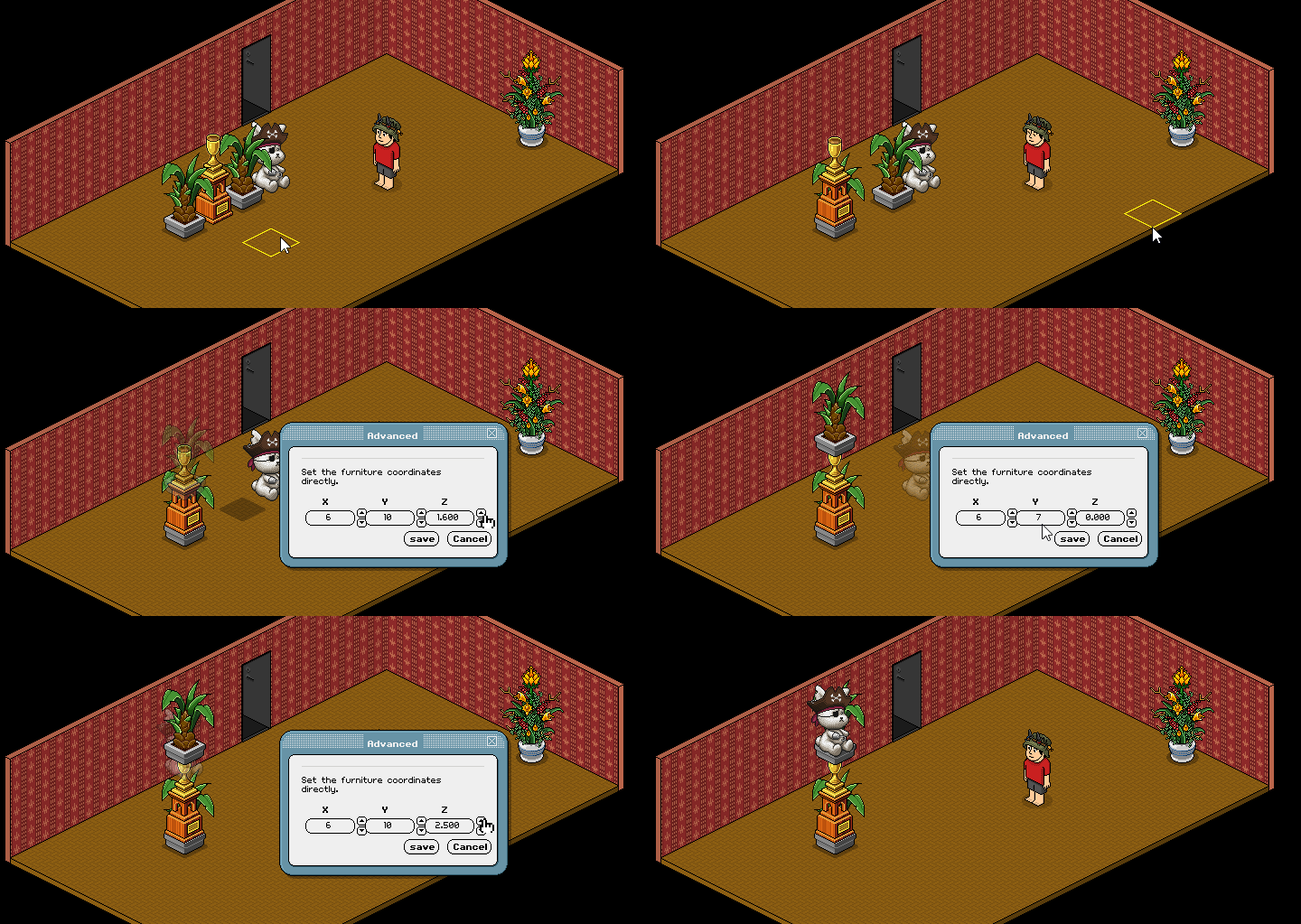
One of the additions in the latest Habbo Origins update is the new Advanced Placement system. Instead of relying entirely on rollers and stackmode, builders can now manually adjust the exact position of furni using X, Y and Z coordinates. In simple terms, this means you can move furniture exactly where you want!
We hear you... How is this different to modern Habbos Stack Tile? Well, unlike the Stack Tile, this is not a peice of furniture you need in order to stack - this functionaility is baked right into the game! Making this placement tool a feature rather than a furniture also means it's more accessible, especially to new users!
To open this tool, click on your furniture and click "Advanced".
Each axis controls a different direction:
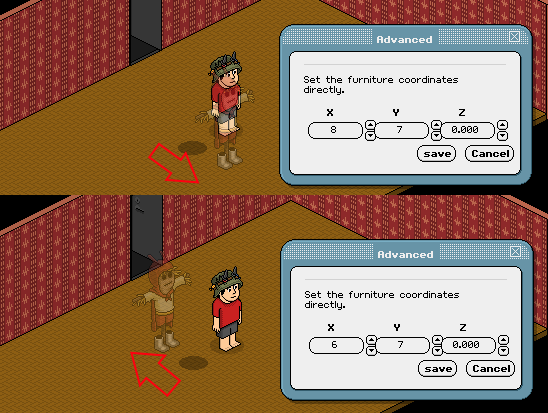
X axis moves furni "forwards and backwards" in the room. Higher X numbers are "forward" and lower numbers are "backwards".
 |
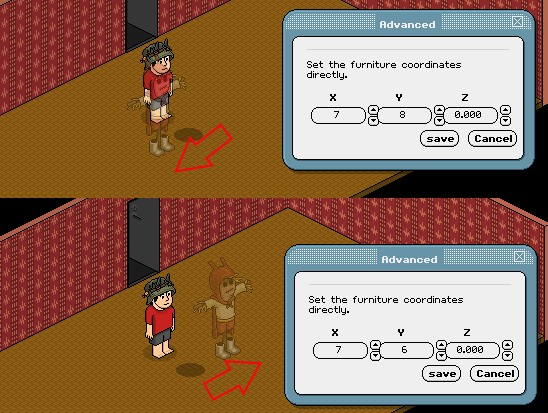
Y axis moves furni left and right. Higher Y numbers are "left" and lower numbers are "right".
 |
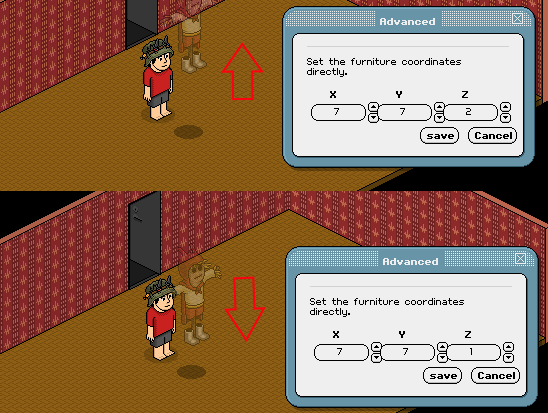
Z axis moves furni up and down. Higher Z numbers are "up" and lower numbers are "down".
 |
X and Y positioning works in single-step increments, while Z positioning allows decimal adjustments for much finer vertical control. This allows you to meet the height of certain furni you're used to in stacking, such as Z Shelves and Trax Discs. That extra precision is what makes detailed stacking and layered designs A LOT easier than before.
For builders, this completely changes how rooms can be designed. Effects that previously needed complicated stack techniques, rollers or awkward placement tricks can now be achieved through the advanced placement tool itself.
 |
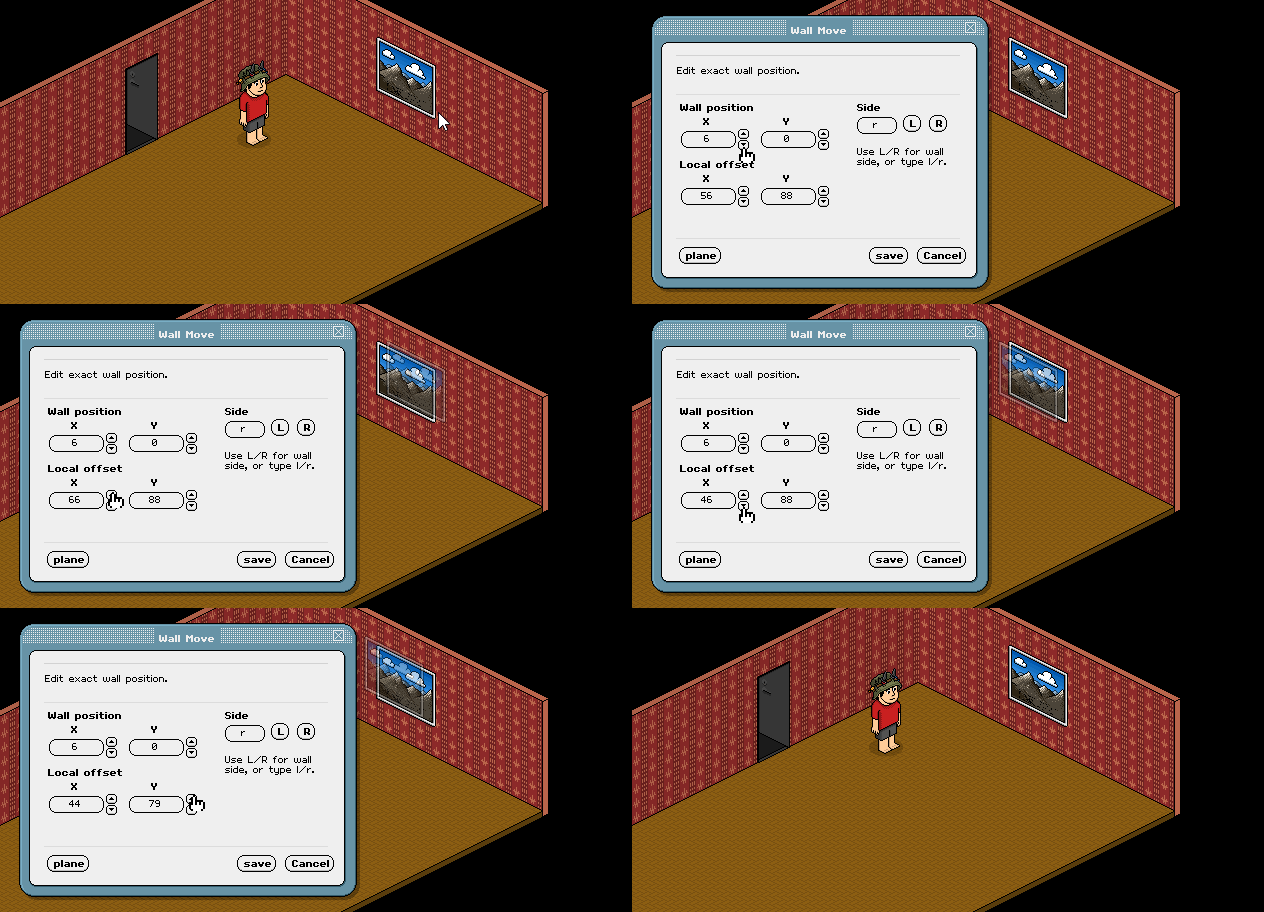
Wall items work pretty much the same way now too! Click on a wall item and you can open the Advanced Placement tool to adjust its position manually. You’ll see the usual X and Y coordinates, but there’s also a new setting called Local Offset. This lets you nudge posters and wall items isometrically up and down for much more precise placement.
You can also swap which wall direction the item faces by changing it between the left and right wall "rotation".
Finally, Habbos have been asking for a legitimate way to get posters in black and it's finally delivered!
 |
Bulk Moving Tool
Another incredibly useful addition in this update, is the new Bulk Moving tool. Designed to save builders from the frustration of having to rebuild something you've already built, when you wanted to build it elsewhere in the room.
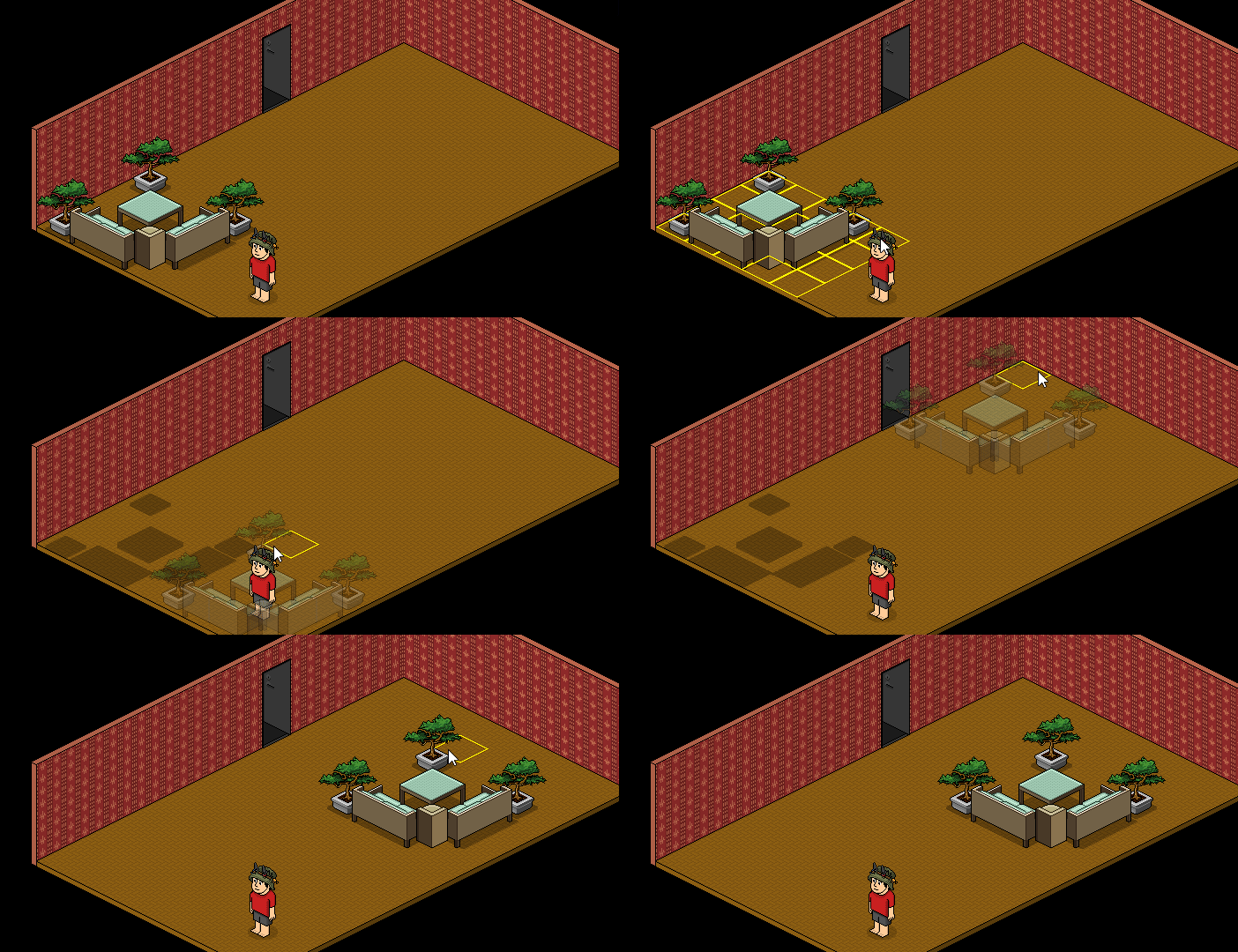
The tool allows you to select multiple pieces of furni at once and move them together as a single build. So if you’ve spent ages creating a stack, living room setup or room layout on one side of the room, you can reposition the entire thing elsewhere without dismantling it and rebuilding it furni by furni!
Using it is simple:
- Hold down Alt (option on Mac)
- Click and drag over the area you want to move
- Release to lock the selection in place
- Move your mouse to preview the new position using the ghost outline
- Click again to place everything down
For larger rooms and more complicated builds, this is a MASSIVE time saver! It makes experimenting with layouts and builds far less risky, since you no longer need to destroy a build just to move it somewhere else.
 |
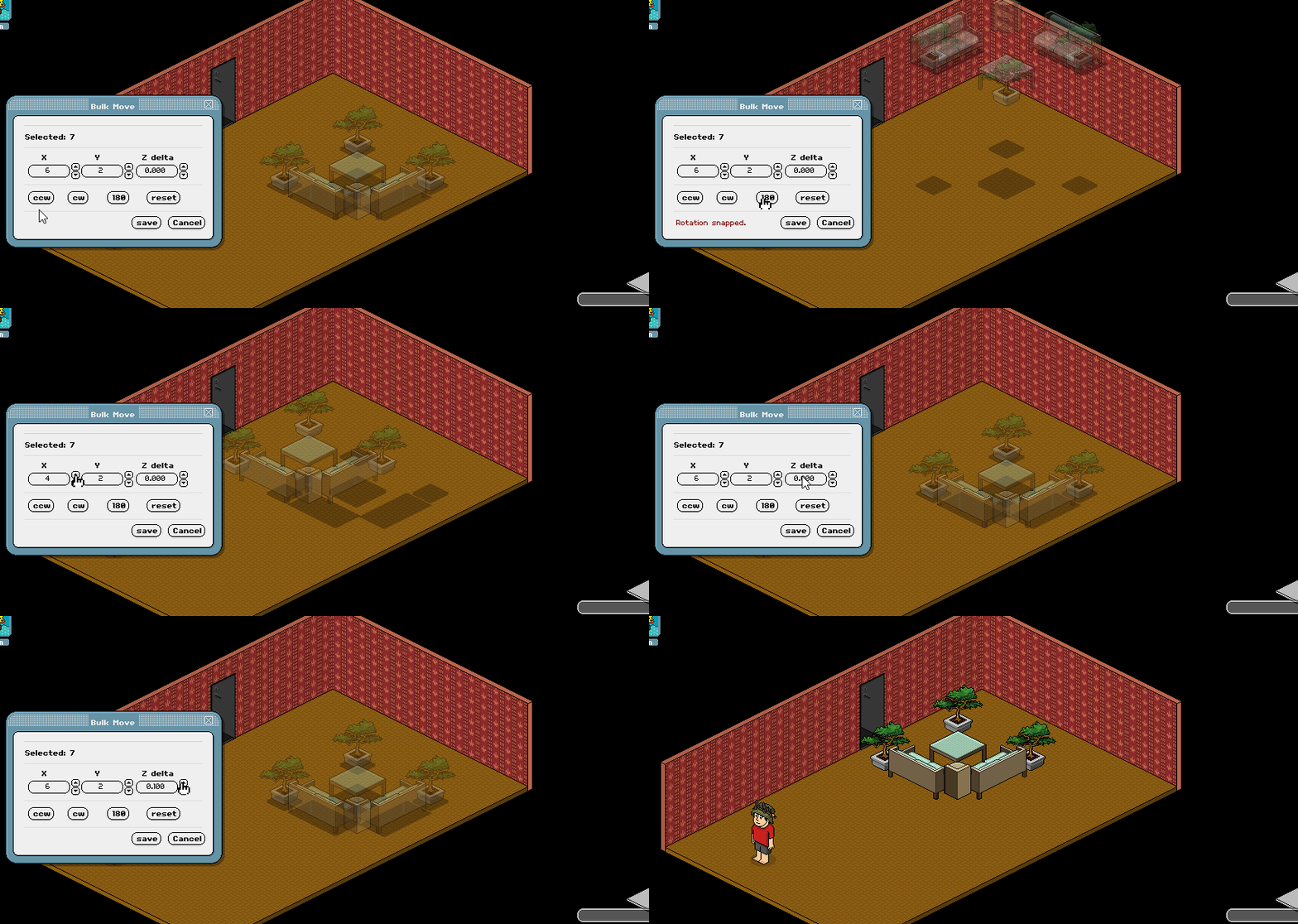
Once you select an area using the Bulk Move section, an additional UI box will appear with some new options to further fine tune your selection before choosing to replace it in your room.
First, you’ll notice the same X, Y and Z axis controls from the Advanced Placement tool. These let you adjust the position of the entire selected build before confirming placement. The same as we did for a single furni item.
Alongside those are four new buttons for rotating and flipping larger selections:
- CCW rotates the entire selection anti-clockwise.
- CW rotates the entire selection clockwise.
- 180 flips the whole selection 180 degrees.
- Reset restores the selection back to its original state.
Importantly, these rotation tools don’t just move the selection itself. They also rotate the furniture! This can make it far easier to reposition builds without manually adjusting every individual item afterwards. Although right now this seems useful in very specific cases.
Once you’re happy with the placement, you can either save the selections now position or cancel it entirely!
 |
Advanced Techniques
There are also more advanced techniques currently being explored by builders which appear to allow furniture to be moved and retained outside of normal room boundaries. At the time of writing, it is still unclear whether this behaviour is fully intentional, working exactly as planned or simply part of ongoing adjustments to the system.
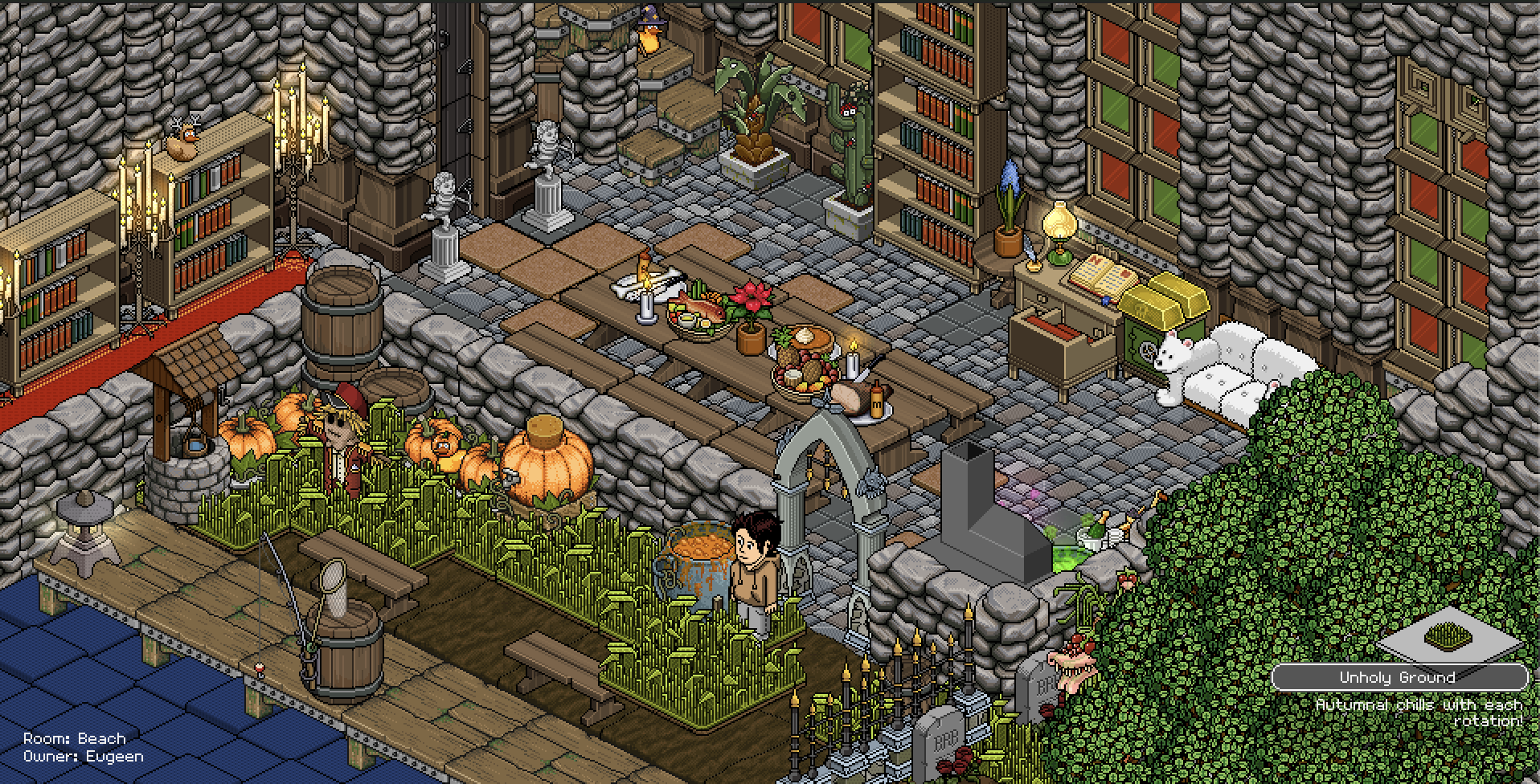 |
An update released late on 09/05/2026 already altered some of this functionality. This suggests the tools are still being actively refined/altered. We're now able to save our rooms with furniture placed out of bounds, and it seems to stay!
Once there’s clearer confirmation on what is and is not intended behaviour, we’ll update this guide with more detailed information and tutorials! Watch this space!
Creative Mode & Creative Furni
Creative Mode is one of the most accessible additions that Habbo Hotel: Origins has introduced for builders and casual players alike. In short, it allows users to place selected furni in their rooms without needing to buy or own it first! For newer players, this is a brilliant way to experience room building without immediately needing a huge furni collection or a pile of credits. You can experiment with layouts, test ideas and get comfortable with room designs before deciding what you actually want to invest in.
It’s also incredibly useful for game hosts. Functional furni in particular can quickly become expensive when building event rooms like mazes or games, so being able to prototype layouts without spending money first is a massive help. Builders benefit just as much as well! Instead of buying dozens of items just to see whether a concept works (and inevitably end up changing your mind), Creative Mode lets you test ideas for shapes, palettes and room structures using a selection of staple furni before committing to a full build.
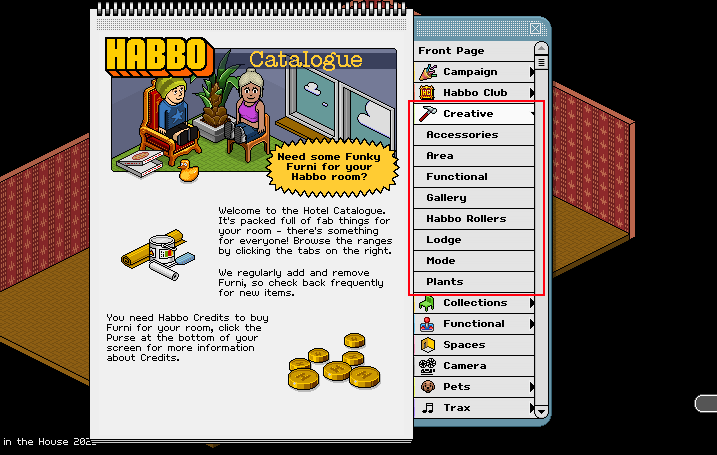
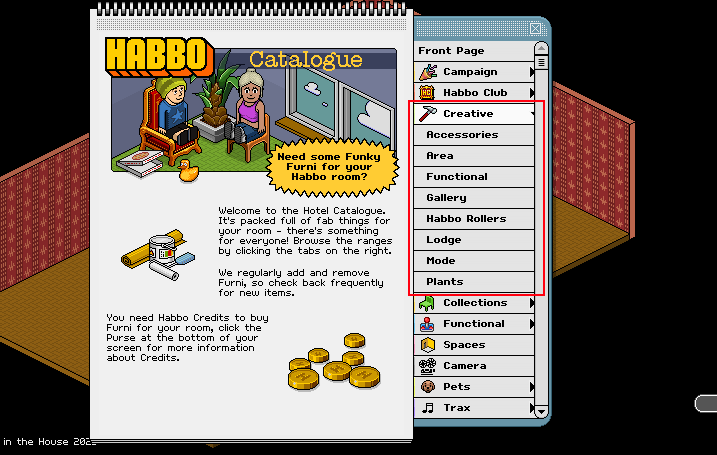
You can find all current Creative Mode furni in the catalogue under the 'Creative' dropdown.
 |
Unlike the modern Habbo Builders Club system, Creative Mode in Origins is far more limited by design. Players do not get access to every furni line in the game. Instead, the system focuses on a more curated range of basic and commonly used furni, (for example the original Lodge and Area furni lines), keeping the economy and collecting side of Origins relevant. Something to note is that Creative Mode is free to use for all players regardless of being subscribed to Habbo Club, however the max amount of creative furniture that can be used per account is lower for non-HC members, and those limits have potential to change as the feature develops.
 |
One interesting discussion already appearing in the community is whether Creative Mode furni should be allowed in building competitions. At the moment, many players seem to agree the feature works best as an everyday creative tool rather than something intended for competitive showcase builds. While nobody can win a building competition with just some Lodge stools, the consensus will likely be that Creative Mode furni will be excluded from competitions due to the risk of bots and alts flooding the entries with rooms filled with creative furni.
Update 14/05/26: Macklebee has confirmed that Creative Mode furni will be permitted in building competitions due to the new rule only allowing HC members to enter competitions. This will hopefully reduce the risk of alts and bots, while still affording us builders the freedom to experiment with the free creative furni options.
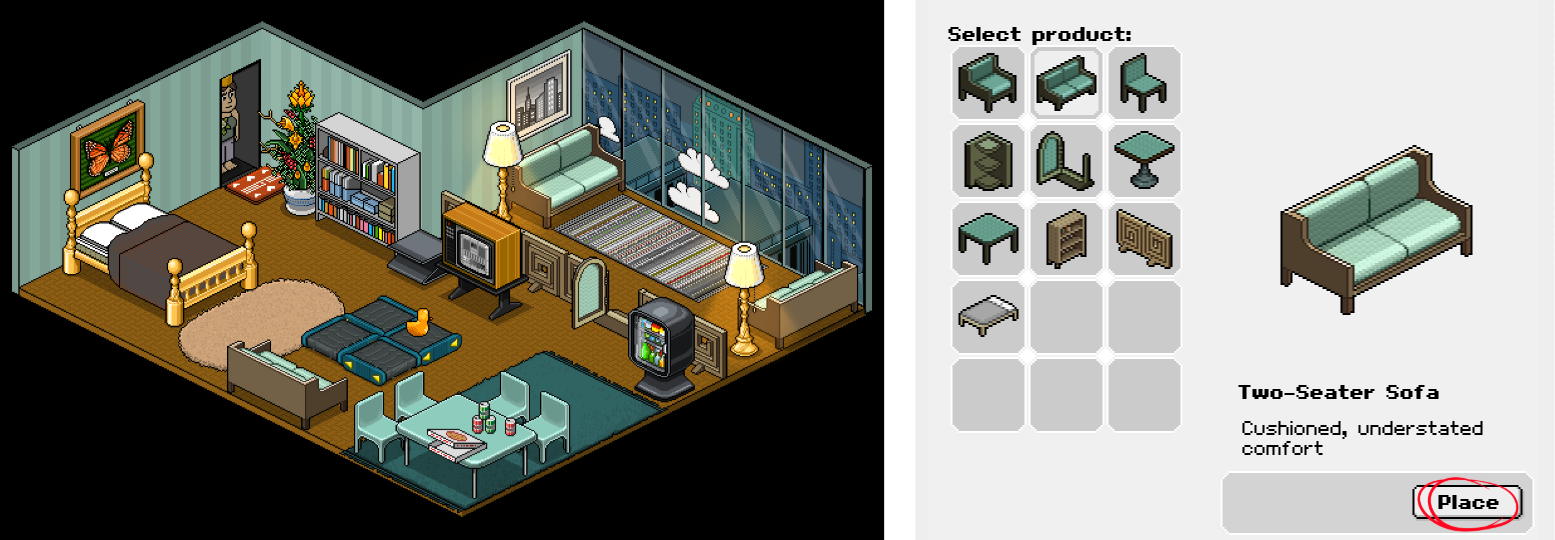
When players log in for the first time, they'll now be redirected to a new tutorial room in the works called 'Hotel Room'. This room gets added to your list of owned rooms, and is pre-filled with Creative Mode furni for players to mess around with! You cannot pick up Creative Mode furni and if you do, it will disappear and need to be re-grabbed from the Creative category in your catalogue.
 |
Your Thoughts
Whether you're a competitive or casual builder, or a game host, or just someone with strong opinions, we always want to know how you're feeling about additions. Leave a comment if you're enjoying these new features/excited to see how they develop, or not, and why! :)